How to Connect Microsoft Teams to Your ProcessCoach Instance
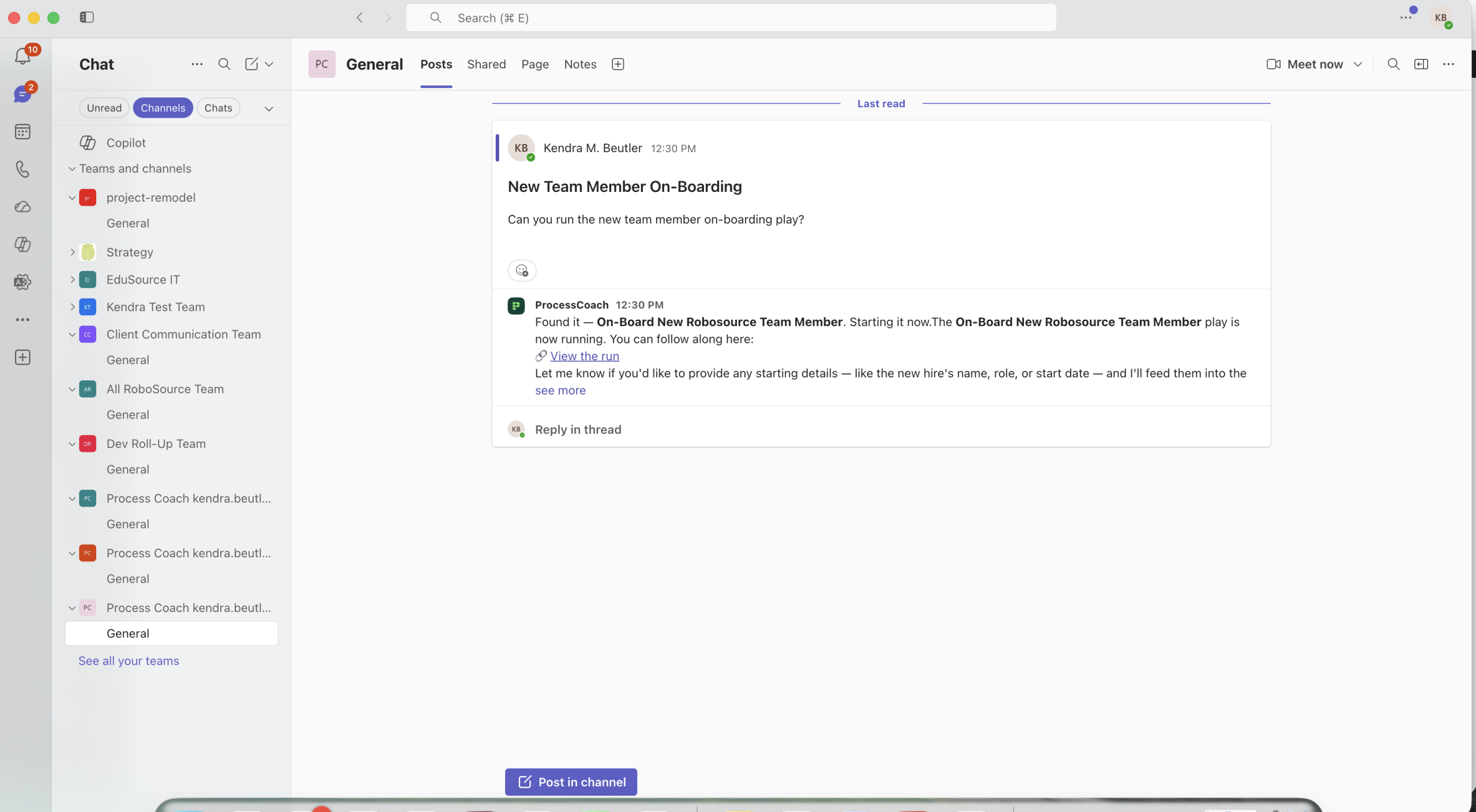
Keeping your team aligned shouldn’t mean jumping between five different tools just to check on a process. That’s why we’ve built a direct integration between ProcessCoach.ai and Microsoft Teams (you can read about how to set up an integration with Slack here). Now you can get real-time process updates, approvals, and coaching prompts right where your team already collaborates.
In this guide, we’ll walk through everything you need to connect ProcessCoach.ai to your Teams workspace, starting with authorizing the integration. Only one person from your organization will need to do this initial set-up. By the end, you’ll have a fully connected setup that keeps your team in the loop without ever leaving Teams.
Once again, these are the steps for doing the initial set-up for your organization and Teams. This only needs to be done once per organization, and it will need to be done by an admin.
To start, log into ProcessCoach, and go to “Settings” in the menu bar, then choose “Notifications.” Scroll down to “Microsoft Teams.” Click “View setup guide.”
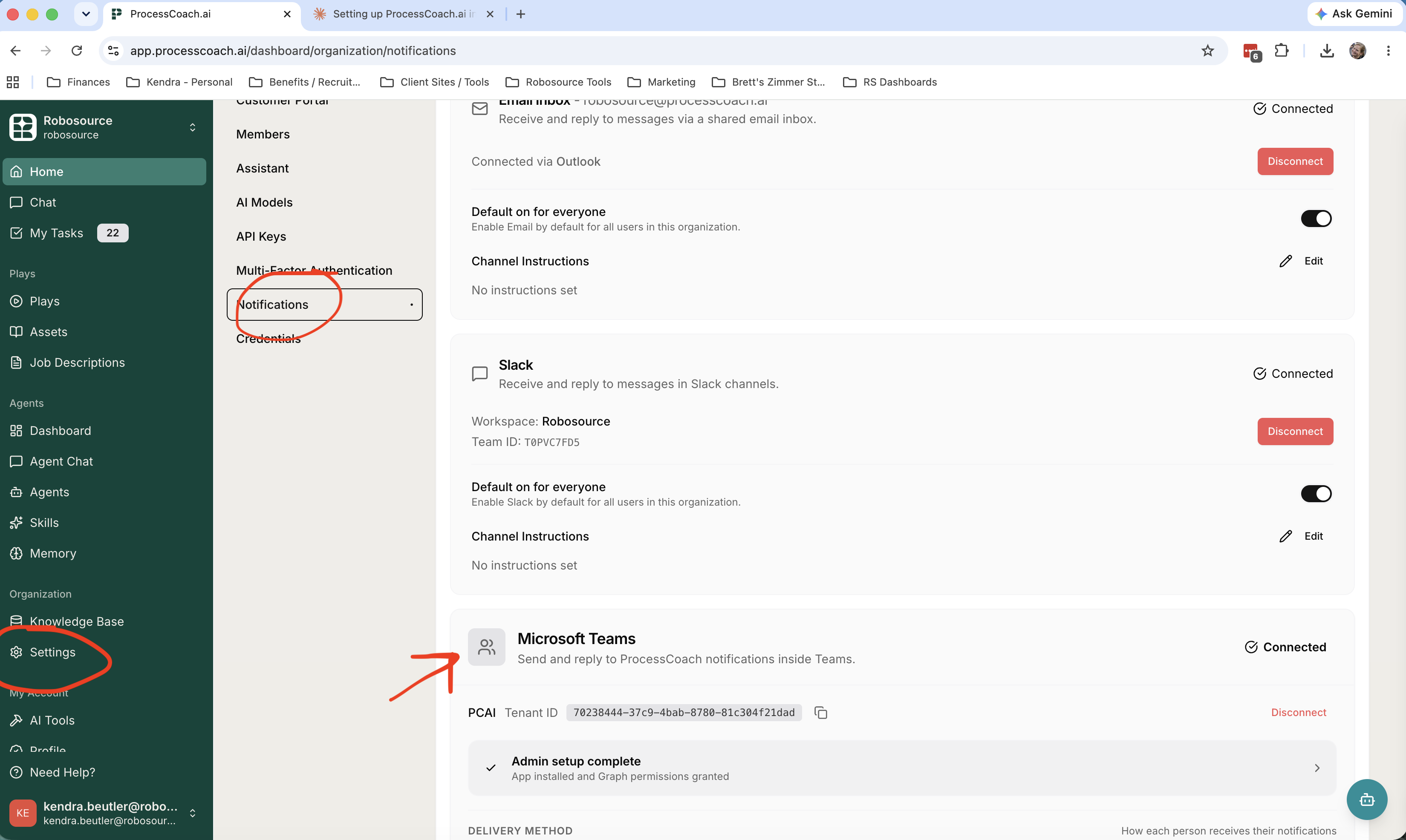
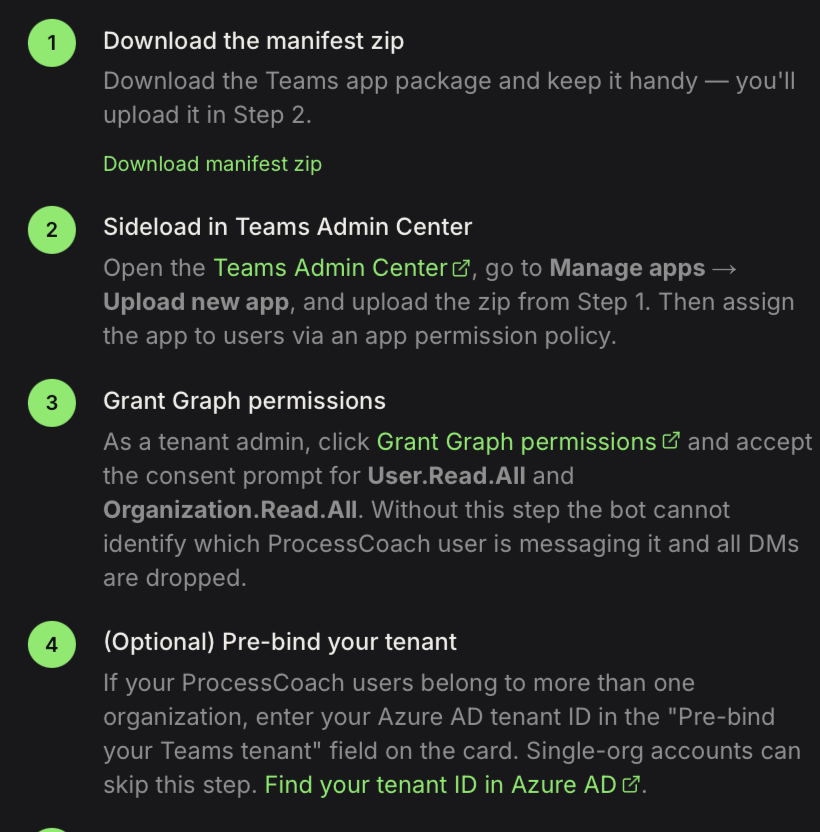
Select “Connect,” then “View Setup Guide,” which will appear on the right-hand side. A Microsoft admin will need to follow these steps carefully. Here’s a partial screenshot:
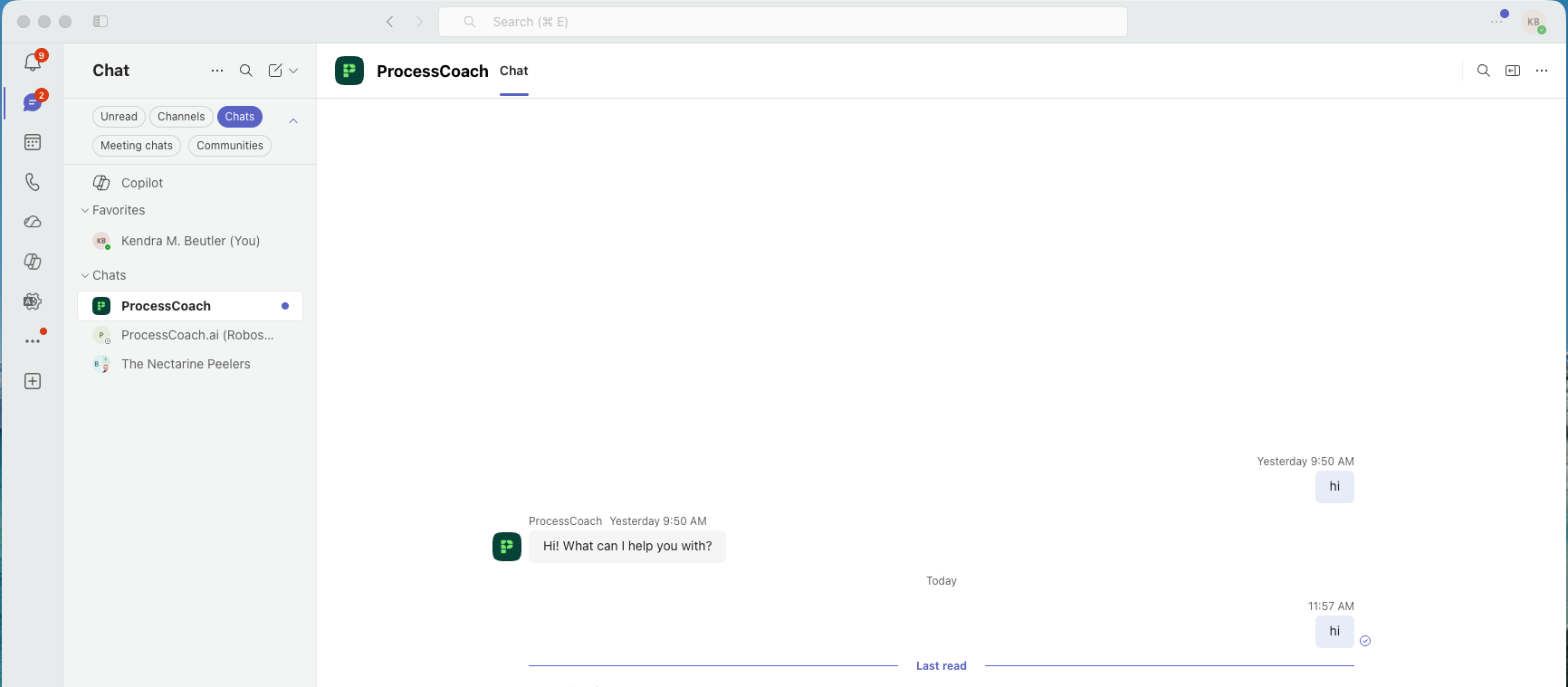
Now go into Microsoft Teams and find the “Chats” option. You should now have ProcessCoach as a chat. Send the bot any DM to get it connected.
Now jump back to ProcessCoach. Microsoft Teams should now say “Connected.” On Delivery Method, choose “Team per person.” Then select “Create all teams now.” This is setting Teams up for all users in your organization. It may take a bit.
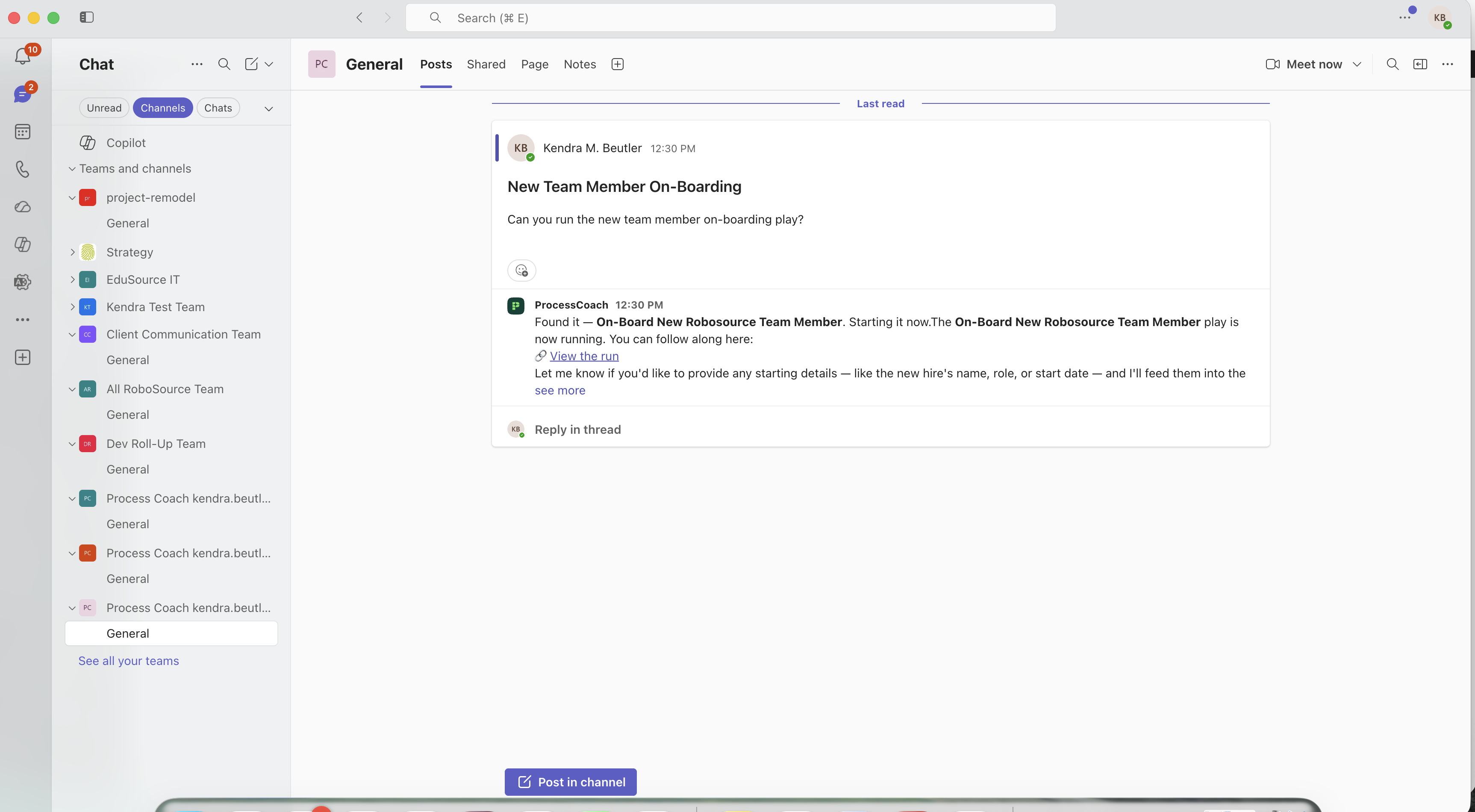
Finally, go back to Teams, then find Channels, and find the ProcessCoach with your username channel. Ask ProcessCoach to do something for you. Please note that the bot takes some time to respond in Microsoft Teams. We’re continuing to work on ways to make it faster. But for now – be patient!
Having trouble? Feel free to reach out to our support team by clicking the “Need Help?” link at the bottom of the side menu in ProcessCoach. Or reach out to your Client Account Manager!
Talk to the Robosource team about what's worth automating first.